
How to Use Panda Remit: Step-by-Step Guide

Panda Remit streamlines cross-border transfers for everyday senders and seasoned expats alike. This guide shows you how to set up, fund, and deliver a transfer with confidence. You’ll learn the fees that matter, the limits you’ll face, and smart safety checks to avoid delays.
Key Takeaways
- Panda Remit makes US-to-Philippines remittances straightforward with bank deposits, popular e-wallets, and nationwide cash pickup.
- Set up your account, complete KYC, link your bank via Plaid ACH, set a payment password, authorize the debit, then track progress in Order Details.
- Confirm fees and limits before sending, and upload clear proof of income when requested to prevent delays and keep higher transfer limits available.
Using Panda Remit To Send Money To The Philippines
Use this step-by-step ACH guide to send money from the U.S. to the Philippines with Panda Remit. Follow each step so your transfer authorizes smoothly, posts correctly, and tracks transparently.
Start Your Transfer Right
- Open the Panda Remit app and land on the homepage.
- Enter the amount you want to remit so the app previews fees and the exchange rate.
- Tap Start Remittance to move into the payment flow.
Pick Your Payee And Confirm
- Tap Payee to choose an existing recipient or add a new one in the Philippines.
- Double-check name spelling and payout details so they match the recipient’s bank or ID.
- Review the Remittance Information screen, then tap Pay Now.
Link Your Bank With Plaid (ACH)
- Choose Payment Method → Bank Debit (ACH).
- You’ll jump to the Plaid authorization page used for secure bank linking.
- Search for your U.S. bank, then select it from Plaid’s list.
- Enter your online banking username and password. Complete any verification prompts.
- Return to Panda Remit when Plaid confirms the account was added successfully.
Set Your Payment Password Once
- Tap the Bank Account you’ll use for payment.
- Because this is your first payment, set a payment password and type it twice to confirm.
- Save this password securely. You’ll use it to verify future payments faster.
Authorize Payment And Track Delivery
- Tap the same Bank Account to proceed with payment.
- Enter the payment password you just set to authorize the debit.
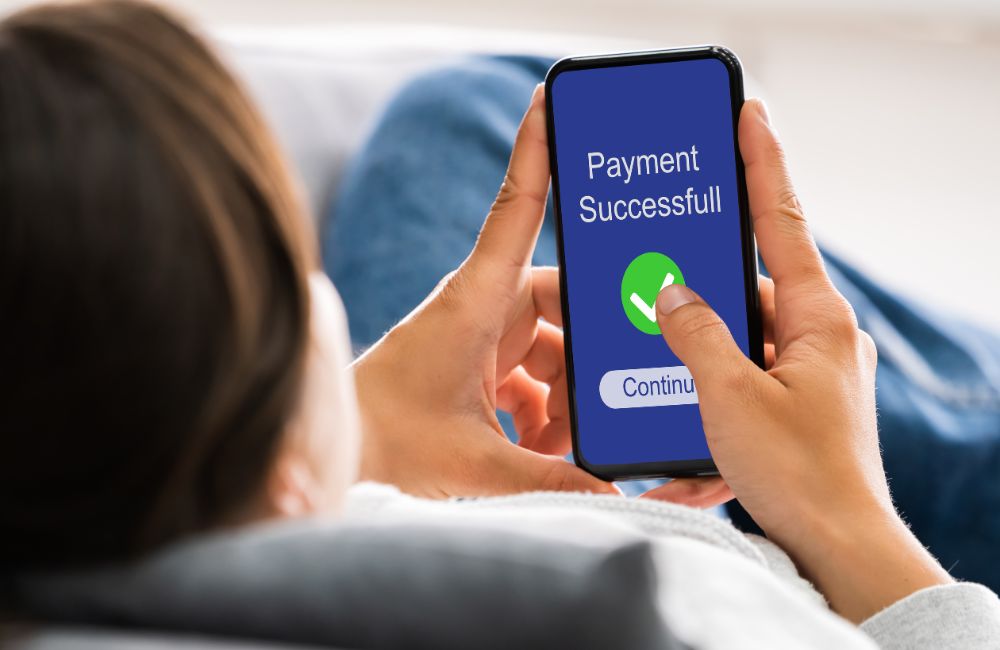
- Wait for the success screen, then tap Order Details for your receipt.
- Track progress inside Order Details until the transfer completes.
Common Transfer Options
Different options are available when using Panda Remit to send money. Below are the common ways for your loved ones to receive money.
Bank Deposit Guide: BDO, Metrobank, And Security Bank
Bank deposits deliver funds straight to savings or checking accounts at BDO, Metrobank, and Security Bank. Ideal for bills, rent, and savings goals. Enter details exactly as registered. Name matching and correct account numbers prevent manual review and failed credits.
- BDO (BDO Unibank): Enter the account name and number exactly as registered to prevent verification holds.
- Metrobank: Confirm the account number and ensure the recipient’s full legal name matches bank records.
- Security Bank: Verify the correct bank selection and keep name formatting consistent with the account title.
E-Wallet Transfers: GCash, Maya, And Coins
E-wallet transfers reach GCash, Maya, and Coins users fast for daily spending and cash-outs. Use the registered mobile number and verified profile. Matching names and active accounts reduces checks, speeds up availability, and avoids pickup hassles for your recipient nationwide today.
- GCash: Use the wallet’s registered mobile number and match the account holder’s name to reduce review checks.
- Maya: Ensure the wallet is active and fully verified before sending to help speed availability.
- Coins (Coins.ph): Double-check the registered number or identifier and keep recipient details consistent across the app and wallet.
Related: How to Send Money with Remitly
Providing Proof of Income
Some transfers require proof of income to comply with anti-money laundering and licensing regulations. Panda Remit may request salary tax bills or payroll statements. Provide complete, legible files to keep transfer moving.
Reasons for Providing Proof of Income
Regulators require assurance that remitted funds originate from lawful earnings and align with your risk profile. Panda Remit must verify source of income under local licensing, such as Hong Kong’s MSO rules. Strong documentation speeds compliance checks, unlocks higher limits, and reduces the chance of holds, reversals, or cancellations.
How to Send Proof of Income
Upload documents within your active transfer to speed review. Follow Panda Remit’s tutorial steps. Provide salary tax bills or payroll statements. Keep files complete, unredacted, and readable to minimize delays.
- Open your active transaction order inside the Panda Remit app.
- Tap Add now, then tap + to start the upload flow.
- Choose a document type: Salary tax bills or Payroll bank statement.
- For Salary tax bills: provide the complete three-page PDF. Do not crop, mask, or redact any fields.
- If you do not have a copy, request one from your employer’s finance team or download it through Hong Kong eTax.
- For a Payroll bank statement: open the bank app where your salary is credited and download the last three months.
- Check every page for your name, account number, pay deposits, and dates. Ensure text is sharp and readable.
- Acceptable format is PDF or a clear photo of each page taken in bright, even light without glare.
- Return to the upload screen and attach the files in order. Add a short note if context helps reviewers.
- Submit and keep notifications on. Respond promptly to any follow-up request so compliance can finish verification and release your transfer.
Conclusion
Using Panda Remit to send money to the Philippines is straightforward once your account and KYC are complete. You’re covered with bank deposits, popular e-wallets, and nationwide cash pickup. Just confirm the fees, rates, and timing before you send. If compliance requests proof of income, upload clear, complete documents promptly so your transfer proceeds without delays.


